

Complete the form below
Introduction
This manual is intended for users of “HydroIntellect” — an intelligent pipeline leak detection system» (hereinafter, the Software).
The Software is designed for automatic analysis of vibration signals recorded by sensors installed on pipeline walls. Its primary task is to determine whether a pipeline leak is present and, if one is detected, to identify its location accurately.
Using this Software makes it possible to detect and locate liquid leaks in industrial pipelines in real time, with a delay of no more than 10 seconds from the moment a leak occurs.
This manual describes the main steps for configuration, starting measurements, and processing data.
The Software is designed for automatic analysis of vibration signals recorded by sensors installed on pipeline walls. Its primary task is to determine whether a pipeline leak is present and, if one is detected, to identify its location accurately.
Using this Software makes it possible to detect and locate liquid leaks in industrial pipelines in real time, with a delay of no more than 10 seconds from the moment a leak occurs.
This manual describes the main steps for configuration, starting measurements, and processing data.
01
Installing the Software
“HydroIntellect” is provided as an internet service (SaaS); users do not need to perform any special installation steps.
02
Starting the Software
To start the Software, the user connects to the following internet address: https://147.45.110.73:6443
Registration or any other action to activate access to the Software is not required from the user.
Registration or any other action to activate access to the Software is not required from the user.
03
Sensor connection and status
03/1
Sensor status
Sensor status
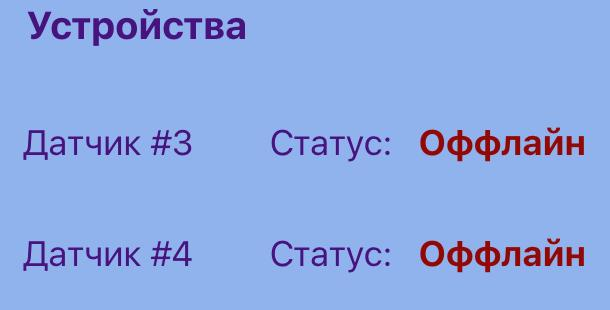
- The main screen displays the current status of the sensors. Each sensor has its own number (for example, 1, 2, 3, 4, etc.).
- If a sensor is switched off, its status is displayed as “offline”.
- If a sensor is switched on, its status changes to “online”.
03/2
Selecting sensors
Selecting sensors
- To take measurements, select two or more sensors.
- Sensors are selected on the screen that displays all available sensors.
- The selected sensors are used to process data and detect pipeline leaks in the section between them.

04
Configuring measurement settings
04/1
Recording duration
Recording duration
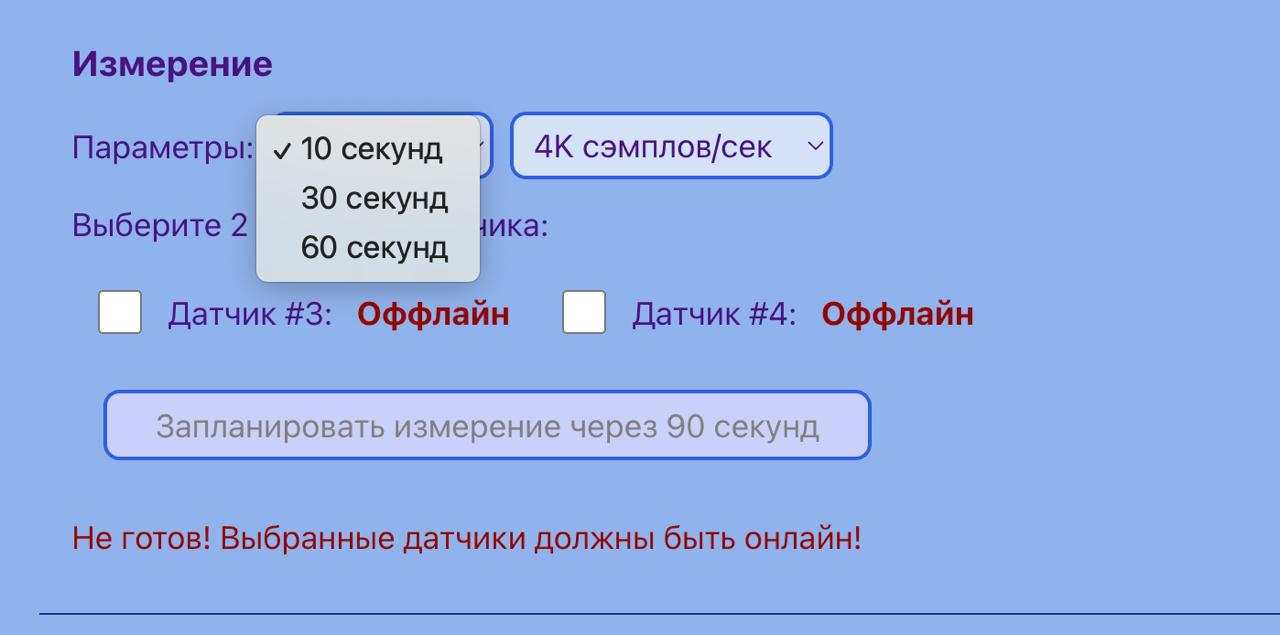
- The user can select a signal-recording duration of 10 seconds, 30 seconds, or 60 seconds.
04/2
Sampling rate
Sampling rate
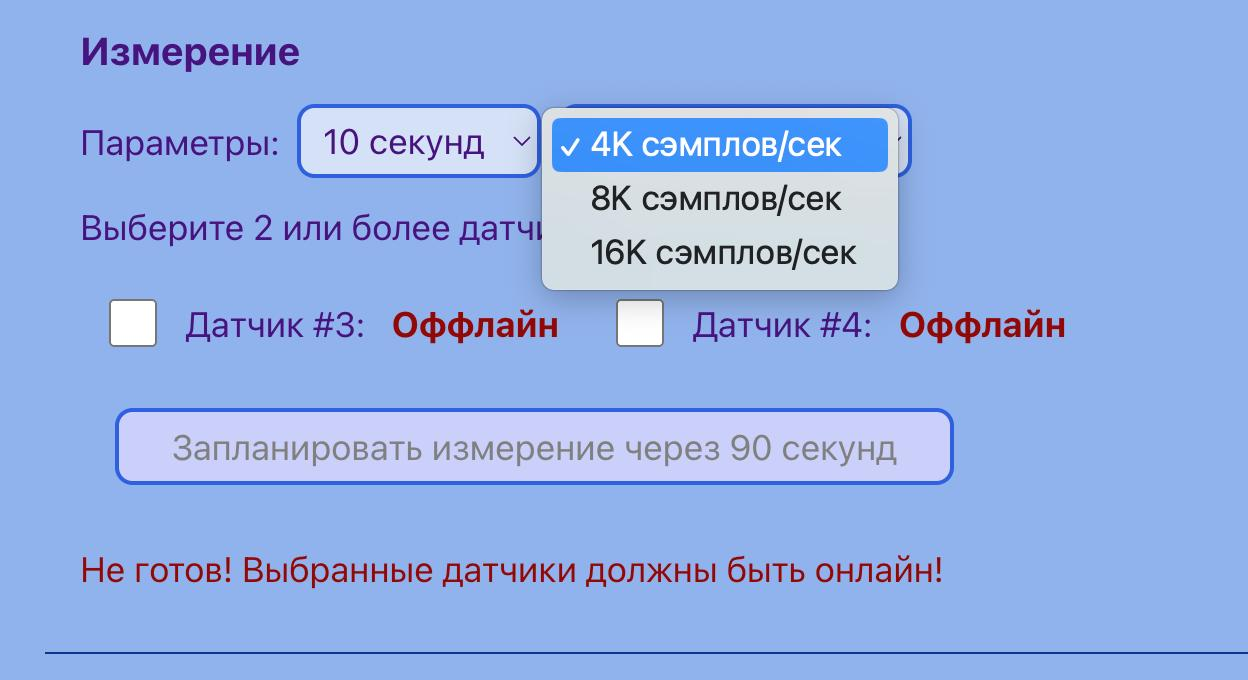
- The sampling rate determines recording quality. Available values are 4 kHz, 8 kHz, and 16 kHz.
05
Data processing
05/1
After selecting settings and sensors, click “Schedule measurement in 90 seconds”
After selecting settings and sensors, click “Schedule measurement in 90 seconds”
- The measurement will begin 90 seconds after the button is clicked.
- During the selected duration (for example, 10 seconds), the sensors will record signals.

05/2
Uploading data
Uploading data
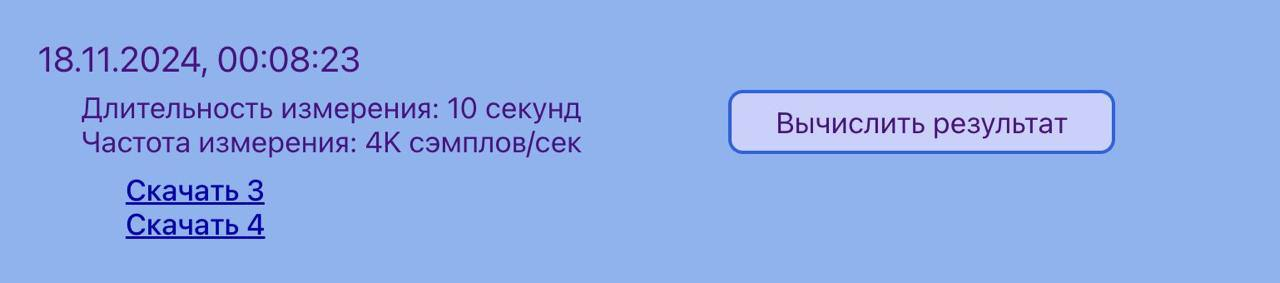
- After recording is complete, sensor data is automatically uploaded to the server.
- If data has been uploaded successfully from two sensors, the “Calculate result” button appears.
- If data has been uploaded from only one sensor, processing is not possible.
05/3
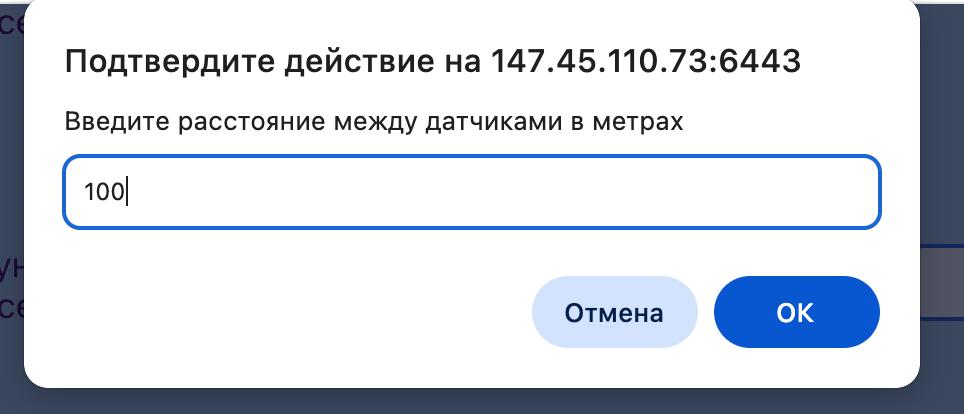
Entering the distance between sensors
Entering the distance between sensors
- To calculate the leak location, enter the exact distance between the sensors.
- For example, if the pipe length between the sensors is 100 metres,
- the user must enter this value in the relevant field.
05/4
Calculation and results
Calculation and results
- After entering the distance, click “OK”.
- The Software will perform the calculation and display the result:
- Leak status: detected or not detected

- Distance to the leak: the distance is always stated from the left-hand sensor (for example, sensor No. 3 if sensors 3 and 7 are used).

05/5
Recalculating results
Recalculating results
- If you entered an incorrect distance, you can change it and click “Recalculate”.
- The Software will perform a new calculation using the updated data.
06
Additional functions
06/1
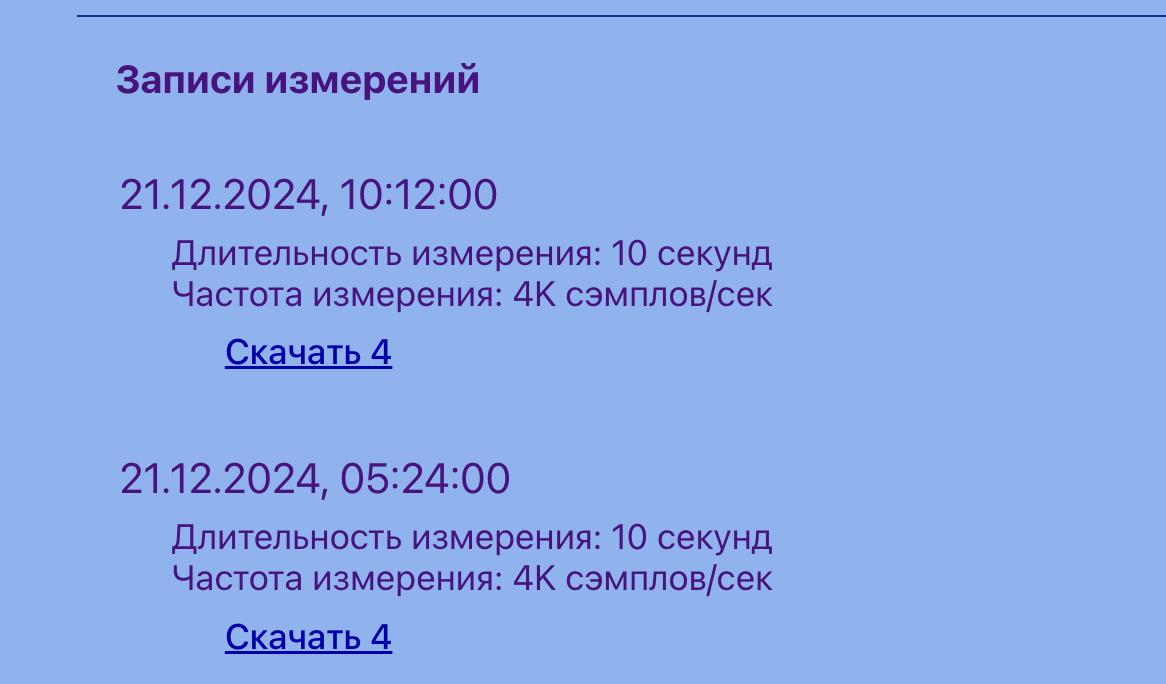
Viewing recording history
Viewing recording history
- All completed recordings are shown in the left-hand interface panel.
- You can download any recording for reprocessing.

BiometricLabs LLC
Taxpayer ID 7714458670
Primary State Registration Number: 1207700085262
Taxpayer ID 7714458670
Primary State Registration Number: 1207700085262
Registered address:
125319, Moscow, 4th 8 March Street, 3, building 3
125319, Moscow, 4th 8 March Street, 3, building 3
Copyright © [2025], BiometricLabs

Complete the form below